Who here is tired of looking down at their feet while sitting at their desk only to be greeted by a tangled mess of cables? Well I know I am, it’s not a pretty site and things can get very messy once you start plugging in more components. Monitors, printers, speakers and the seemingly endless collection of USB devices all add to the tangled chaos. Just because you have a lot of devices don’t mean you have to put up with numerous cables dangling down the back of your desk and for few dollars you can sort this mess out. I know some people are thinking that a fist full of cable ties will do the trick and yes it will but what happens if you want to move or unplug something? You have to grab a set of scissors and start chopping away, then cable tie it all up again.
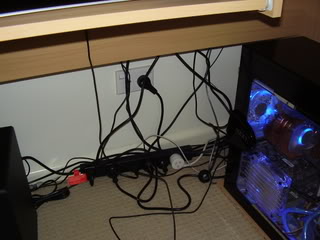
The above image is what I used to have to look at every time I looked under my desk. The following pointers are a quick, cheap and simple way of cable management while still having everything nice and accessible if you need to move or replace anything. It’s not going to be a work of art but it’s definitely an improvement.
Pictured above is selection of cable clamps and adhesive wire saddles, everything you see in that picture set me back $13.80 from my local Bunning Hardware. I’m sure there’s a place that sells it cheaper and if you can be bother shopping around for the best deal then go for it. To clean up my mess I used 5 x small cables clamps, 1 x large cable clamp and a six pack of wire saddles. That should take care of the average PC user’s desk.
These cable clamps are brilliant little devices and they’re adjustable as well as reusable. Just loop the clamp around the cables you wish to group together and close it up as tight as needed. When it comes time to access the clamped cable just press back on the release lever and pull apart the clamp, simple as that! No need for chopping up cable ties each time you have to access something.
The clean up process is pretty straight forward and you can go about it any way you see fit. I’m just sharing a few tips with everyone in case you need them.
- Before you start shifting wires around turn everything off at the mains power point. (obvious precaution but has to mentioned)
- Unplug items you don’t often use, I had an external hard drive that only got used once a month(if that) and a AV connecter harness plugged into the TV tuner card that barely got used at all. There’s no point in me having this stuff plugged in if wasn’t doing anything useful, besides it would only take a minute to plug it all back in.
- Group wires together that share the same travel path, ie the monitor power cable, monitor signal cable and the USB webcam cable all go to the same place so they can be grouped together.
- Unplug and redirect wires to get the neatest travel path.
- Clamp up the cables you have grouped using either the small cables clamps or the wire saddles depending on their location.
- When clamping up cables it’s best to leave a little play in them so you can still move things around, for example I left enough play in my cables for me to pull my case back far enough to access all sides of it without having to unplug anything.
- Some speaker wires can be prone to interference when placed to close to power cables, if you get speaker noise(a humming sound emits from the speaker) then you’ll have to run the speaker cables down another path.
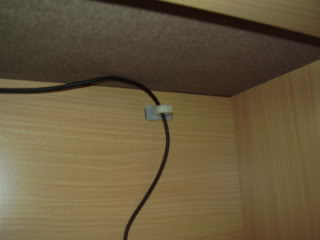
I have a wired USB keyboard on a sliding tray there for I still wanted this cable to have free movement. So I ran the USB cable through some wire saddles which still allows the cable to move back and forth while looking much neater at the same time.
My computer case sits in close proximity to the power board so I used the larger clamp to tidy up some slack from the PSU’s power cable. This may be a situation for some of your other components.
There you have it that’s the end result. It only took me half an hour and some lose change. This is only an example and you can build on it further by using more clamps and other cable management accessories. Take a look in the “power and lighting” section of you local hardware store and you’ll find everything I used here and more. I hope ou got some use out of this article and thanks for reading.
Written by: Matthew Armitage
Submitted by Guyver
5 days ago
40
Join MyPSP to vote for your favourite story!