So there I sat one day at work, bored, and wondering what I could do. I looked at my newly acquired Nintendo DS and thought to myself that a bit of Wifi action would be good right about now. A quick few laps of Mario Kart would be good while everyone was on lunch...But that posed quite a significant problem, no Wifi!!! I mean my Macbook Pro certainly had Wifi but there was no access point. Just a single Blue network cable pumping ADSL2 into my Mac. Hmm whatever shall we do? I guess it was somewhere around now I smacked myself in the head and realised that I had my answer right in front of me.
Reverse the Wifi on my Macbook and make it act as a WiFi Access Point. Surely this couldn’t be done...and even if it could, i'm sure I would lose sleep over it. Hmmm
Turns out 5-10 minutes later there I was on the starting grid of Mario Kart, with god knows who parked next to me, for all I know from Siberia, ready to belt out a few laps.
Now just a few details before I get into the structured guide. This was done on the latest version of Mac OSX, Leopard (10.5), using a 2007 Macbook Pro. Gaming was done with using a Nintendo DS, R4 & 1GB sandisk card. The Wii setup guide was done using a Launch Day Nintendo Wii (DMS/D2A) using a Wiikey, and the latest firmware at the time (3.1E). For the PSP im running a 1002 model PSP. Running 3.40 OE-A. The PS3 is physically untested by myself but should work without a problem.
Quick Jump to Configuring your:
Part 1 - Test Connection
Ensure you are connected to the Internet by a source other than Wifi (Most commonly Ethernet).
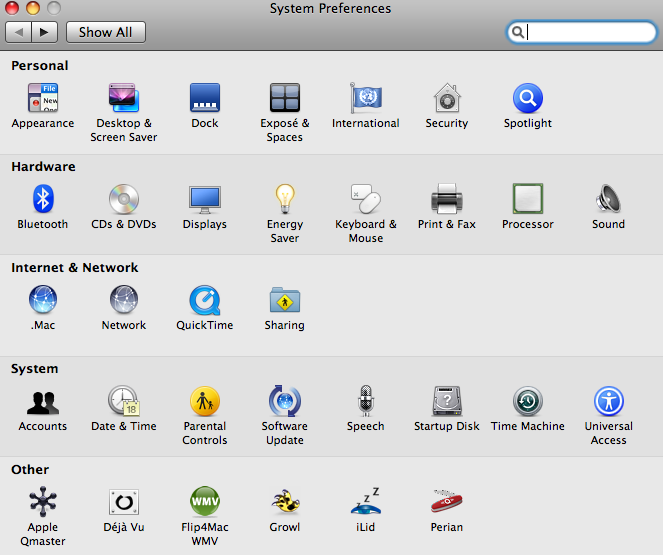
- Open System Preferences, and click on Sharing.
- Select “Internet Sharing” under the service listing.
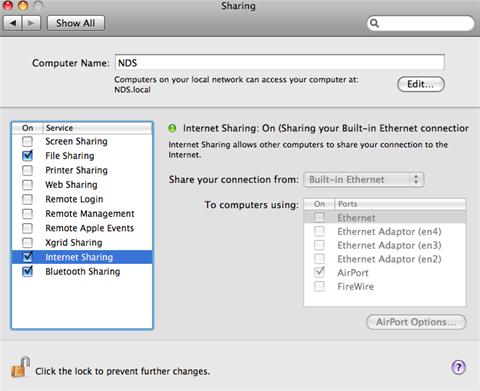
- Change “Share your connection from:” to Built in Ethernet.
- Under the To computers using: section, tick the “Airport” box.
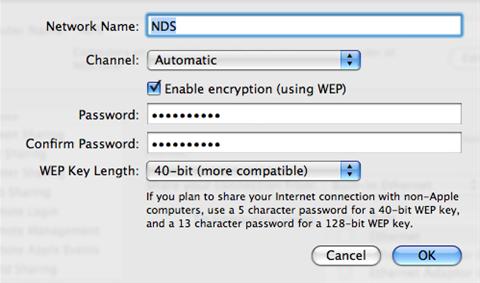
- Click “Airport Options”
- Enter an easy name to identify your newly created Network (in this example we will use NDS)
- Leave “Channel” on Automatic and enter security details as you see fit (My suggestion: Tick “Enable Encryption”, enter a 10 digit password, use 40 bit encryption).
- Click OK
- Now tick the “On” checkbox next to the Internet Sharing Service. You may be prompted for two things. If your Airport is off it will tell you it needs to turn on. It will also ask “Are you sure you want to turn on Internet Sharing”. Select yes to both of these questions.
Now we have configured the Mac to act as a Wireless AP we need to configure the DS to connect to it. Most computers will now be able to access your Mac as an Access Point and share its Internet but the DS doesn’t handle the DHCP server all that well. So we have to do it manually.
- Open Terminal (Applications/Utils) and type ifconfig en1 in the output.
- Look for: inet xxx.xxx.xxx.xxx netmask
- Write down the IP address associated with the first inet (mine was 10.0.2.1; however yours may be different)
- Type dig. Near the bottom of this output you will see SERVER: followed by an IP address. This is the DNS server you will use for your DS.
- Edit your Nintendo WiFi Connection Settings from within a WiFi compatible game.
- Select a connection to edit.
- Choose Manual Setup.
- Enter the following parameters:
- SSID: nds (or whatever you chose in step one)
- Auto-obtain IP Address: No
- IP Address: Take the first IP Address you obtained earlier, and make the last digit bigger. (Example, mine could be 10.0.2.4)
- Subnet mask: 255.255.255.0
- Gateway: The first IP Address, unchanged. (e.g. 10.0.2.1)
- Auto-obtain DNS: No
- Primary DNS: your DNS SERVER from the earlier dig output.
- Test your connection at the top of the screen. Fingers Crossed it should connect now.
- From the Main Menu Click on the Wii Button
- Click Wii Settings
- Go to the Second page of options and click Internet
- Select “Connection Settings”
- Click on a spare connection slot
- Select Wireless
- Click ‘Search for an Access Point”
- Click OK and then Close
- Select the Network we created earlier (in the example we used NDS)
- Enter Network password if applicable (I strongly suggest this to be the case!!!). Click OK.
- Click Ok….again!!
- Click Yes to save settings
- Click Yes to perform test
- Once the test returns a successful response, you are given the option to update your console. Select as required.
- Click “Use this connection”
- That’s it. Click back a heap of times to return to the main menu and away you go.
Provide WEP Encryption was set to off in Step 2)
- Open Network Settings
- Select Infrastructure Mode
- Select New Connection
- Select Scan and press Right
- Select the name of the Network you created (Our example is NDS) and press X
- Press Right on SSID screen
- WLAN Security: None
- Address Settings: Easy
- Give your new connection a name and press right
- Review the settings list and click right when happy
- Press X to save settings
- Press X to test connection
- Once Test is successful click O to return to the menu.
(Provided WEP Encryption was set to off in Step 2) – Please note that as I don’t have a PS3 yet I have taken most of these instructions directly off Sony’s Support Site.
- Select (Settings) and then (Network Settings) in the Cross Media Bar.
- Select [Internet Connection Settings]. Select [Yes] when a confirmation screen is displayed stating that you will be disconnected from the Internet.
- Select [Wireless].
- Select [Scan]: (A list of access points within the range of the system is displayed. Depending on the model of PS3™ system in use, you may have the option [Automatic]. Select [Automatic] when using an access point that supports automatic setup)
- Select the SSID that we created earlier (Our Example Was NDS)
- WLAN Security setting: None
- Save your Settings
- Test the connection: (If you select [Test Connection], the system will attempt to connect to the Internet)
- Confirm the connection test results.
If a successful connection has been made, information on the network will be displayed.
So I guess now a Pro and a Con list should follow so here is my take on it:
Pro's
- No need for a wireless router.
- Even if you have a wireless router, you can set this up just for the DS…Let the Wii connect to the standard network with higher security and let the DS connect to this via WEP only. Your DS will be on a different address range so it makes it that little bit more secure.
- Wireless access everywhere you have access to a Wired Connection. Work, School, Friends etc. (Macbook & Macbook Pro only)
- Mobile Online Gaming!!!! Anyone with a NextG (or of lesser standard, 3G) can share their 3G connection as they did above with the Ethernet connection. That means I can be in the middle of nowhere. Provided I have service…. I can play!!!!!! Bring on Caravan Park over Christmas!!! Long drives for the kids….(Macbook & Macbook Pro only)
- Easy to switch off and secure without effecting the whole network. Just turn off the Airport device on the Mac.
- Even more sinister…. If your parents wont allow you to play online… Hijack the Airport device!!!! Mwhahaha!
Con's
- You can’t use the wireless adapter for anything else while its being shared.
- For Macbook's it will drain the battery so ensure its plugged into a power source
- If Mac crashes so does your online Gaming.
- Potentially could expose your Computer to outside attack…… (I have to put it for legal reasons I guess!)
- Have to have a Mac for it to work (C’mon that’s not a Con….. That’s a Positive!!!!)
- If using it for a PSP or a PS3 you need to run the Wireless Network Unprotected.
I hope you enjoy this guide as much as I have enjoyed writing it for you. Once again another fantastic little secret that Mac has delivered!!! Enjoy!
Written By Annirowe
Version Dated: 24/11/07
Written Exclusively for MyMedia Sites
Seek permission from Author before replicating!
Most importantly…….Enjoy!
 01/12/2007
7
01/12/2007
7
Join MyPSP to vote for your favourite story!
Tags:
access
apple
ds
Point
PSP
Router
Using
wii
wireless
More Info:
2GB Memory Stick Duo
Related News:
Related Videos: